
How to Reopen a Closed Incognito Tab in Chrome
Closed an incognito tab by accident? Here's why Chrome won't bring it back, plus the one-click way to reopen closed incognito tabs and windows.
June 13, 2026
You closed an incognito tab a second ago, reached for Ctrl+Shift+T to bring it back… and nothing happened. The page is just gone. In a normal window that shortcut reopens your last tab instantly, but in incognito, Chrome acts like the tab never existed.
Here’s why that happens, and how to get your closed incognito tabs back anyway.
Why Chrome won’t reopen incognito tabs
Incognito mode is designed to forget. When you close an incognito tab or window, Chrome deliberately discards it. It isn’t added to your history, and it isn’t kept in the “recently closed” list that Ctrl+Shift+T draws from. That’s great for privacy, but it means a single misclick can wipe out a page you wanted to keep, with no built-in way to recover it.
The fix: reopen closed incognito tabs in one click
Incognito Reopen & History adds the recovery that Chrome leaves out. It quietly keeps track of the incognito tabs you close, entirely on your own device, so you can bring any of them back.
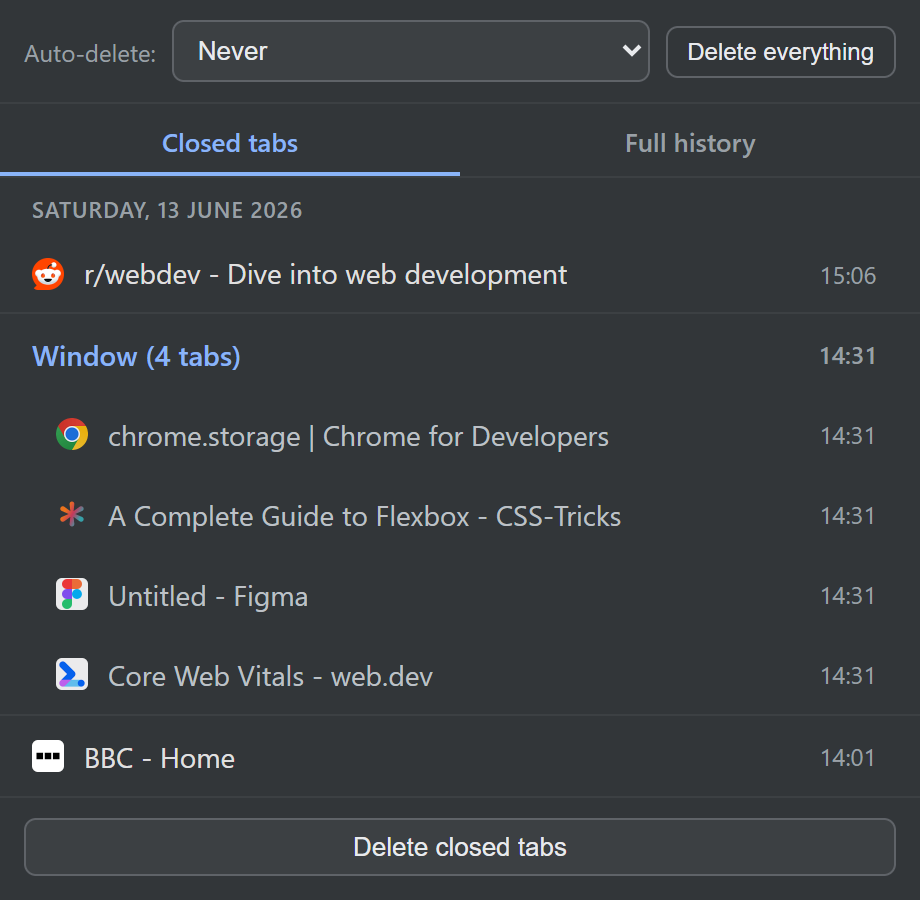
To reopen a tab:
- Click the extension icon in your toolbar while in (or alongside) incognito.
- Open the Closed tabs view, where your recently closed incognito tabs are listed newest-first, with their favicons and titles.
- Click any entry to reopen it in an incognito window. Prefer to keep working? Middle-click to reopen it in the background without losing your place.
Or use a keyboard shortcut
If you’d rather not touch the mouse, the extension gives you two shortcuts that work where Chrome’s own one doesn’t:
- Alt+T: reopens your last closed incognito tab from anywhere.
- Ctrl+Shift+T: works from any incognito page, restoring the tab the way you always expected it to.
We dig into the second one in why Ctrl+Shift+T doesn’t work in incognito.
Closed the whole window?
If you closed an entire incognito window, you haven’t lost everything. The extension groups those tabs together so you can restore the whole window, with all its tabs in their original order, or just pick out the single tab you actually wanted. See recover a whole closed incognito window.
Private, as always
Everything the extension remembers is stored locally in your browser. There are no accounts and no servers, and nothing about your incognito tabs ever leaves your computer. And if you’d rather it forget on a schedule, you can set it to auto-delete.
Install Incognito Reopen & History and never lose an incognito tab to a stray click again. It’s free.