
Recover a Whole Closed Incognito Window (All Tabs at Once)
Closed an entire incognito window full of tabs? Here's how to bring the whole thing back in its original order, or restore just the one tab you needed.
June 5, 2026
Closing a single tab by mistake is annoying. Closing an entire incognito window (ten tabs of research, gone in one click) is a small disaster. And because incognito forgets everything the moment it closes, Chrome offers no way to bring any of it back.
Incognito Reopen & History does.
Closed windows are kept together
When you close an incognito window, the extension doesn’t just scatter its tabs into a list. It remembers that those tabs belonged to the same window and keeps them grouped, so you can deal with them as a unit.
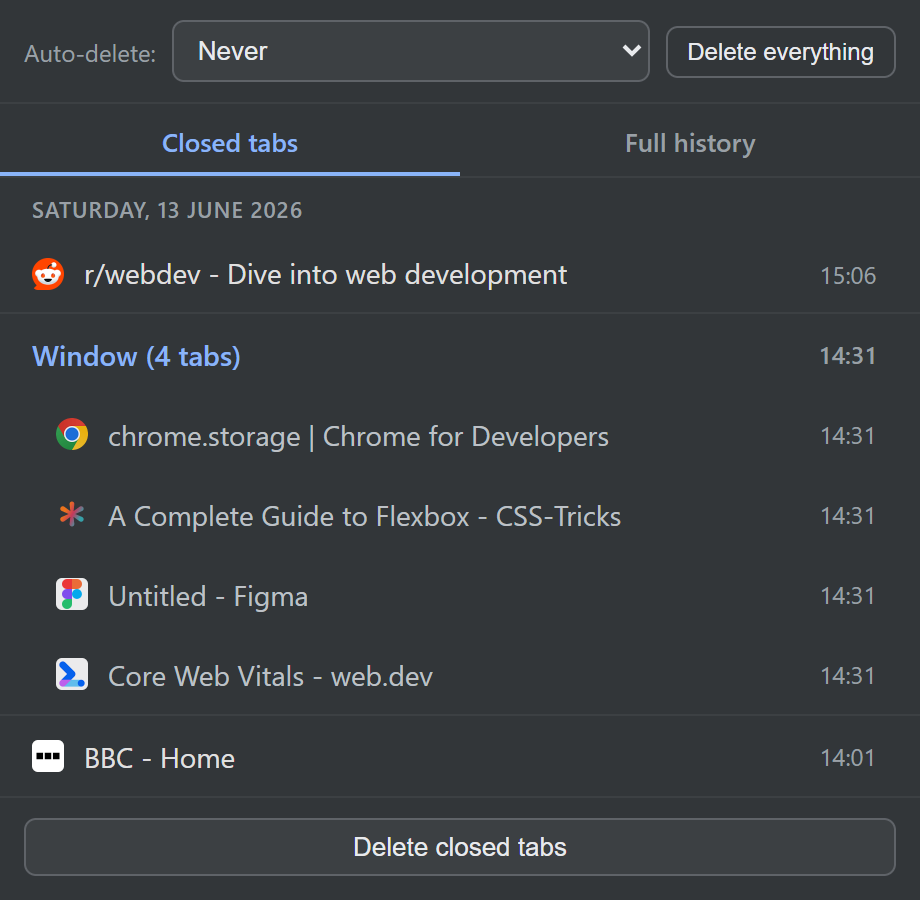
Open the extension’s Closed tabs view and you’ll see the window as a single group, labelled with how many tabs it held.
Restore the whole window, or just one tab
From that group you have two options:
- Bring back the entire window: click the group to reopen every tab at once, in the same order they were in. Your session comes back the way you left it.
- Pick out a single tab: only need one page from that window? Restore just that tab and leave the rest. The group stays intact so you can grab others later if you change your mind.
Either way, tabs reopen in incognito, keeping your browsing private.
Works even after a crash
This isn’t only for tabs you close. If Chrome crashes or you shut your computer down with incognito windows still open, those tabs would normally vanish without a trace. The extension catches them too. See get your incognito tabs back after a crash or restart.
Private by design
As with everything the extension does, your closed windows are remembered only on your own device, stored locally and never uploaded. And you can auto-delete them on whatever schedule suits you.
Install Incognito Reopen & History and stop fearing the close button. It’s free.