
Why Ctrl+Shift+T Doesn't Work in Incognito (and How to Fix It)
Ctrl+Shift+T reopens closed tabs everywhere except incognito. Here's why the shortcut does nothing in incognito mode, and how to make it work again.
June 9, 2026
Ctrl+Shift+T is muscle memory for a lot of people. Close a tab, regret it, hit the shortcut, and it’s back. Except in incognito, where you press it and… nothing. The tab stays gone.
It’s not a bug, and your keyboard isn’t broken. Here’s what’s going on.
Why the shortcut does nothing in incognito
Ctrl+Shift+T reopens the most recently closed tab from Chrome’s “recently closed” list, the same list you’ll find under History. The catch: incognito tabs are never added to that list. Incognito is built to leave no trace, so closing an incognito tab discards it immediately. With nothing in the list, the shortcut has nothing to reopen, so it quietly does nothing.
In other words, the shortcut works exactly as designed. The limitation is that Chrome’s design throws incognito tabs away the instant you close them.
How to make it work again
Incognito Reopen & History restores the behaviour you expect. It keeps its own private list of the incognito tabs you close, on your device only, and wires the shortcut back up.
Once it’s installed, from any incognito page:
- Press Ctrl+Shift+T to reopen your last closed incognito tab, just like you always have in normal windows.
- Or press Alt+T, which does the same thing and avoids any overlap with Chrome’s own shortcut handling.
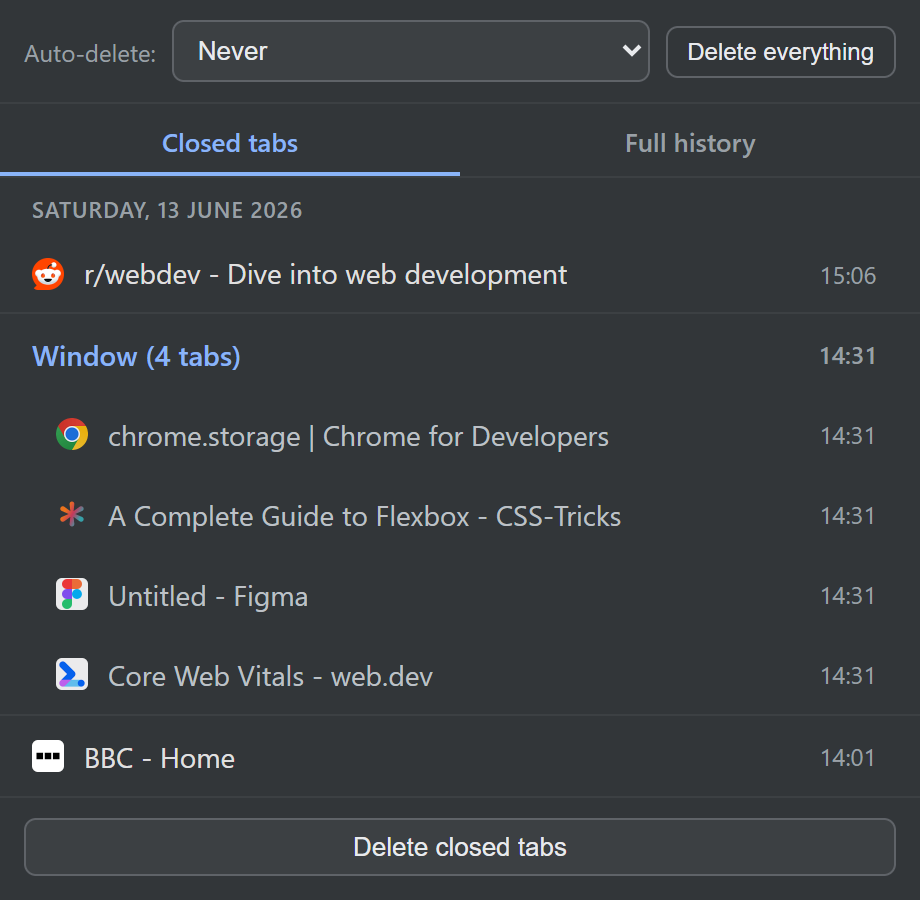
Prefer to click? The extension’s toolbar popup lists every recently closed incognito tab so you can pick the exact one you want. There’s a full walkthrough in how to reopen a closed incognito tab.
A quick note on the shortcut
Because Chrome treats Ctrl+Shift+T specially, the extension uses Alt+T as its default toolbar command and detects Ctrl+Shift+T directly on incognito pages. Either way, you get one keystroke to bring your tab back, which is all you wanted in the first place.
Still private
The extension never sends your tabs or history anywhere. Everything it remembers stays in your browser’s local storage, and you can clear it or auto-delete it whenever you like.
Install Incognito Reopen & History and get your reopen shortcut back. It’s free.